Site-specific Application
In addition to this participation guide, please review the complete Odyssey user guides and FAQs to troubleshoot
any issues, or reach out to the Odyssey support team via the support chat box in the bottom right corner of the application.
1. Create Your Project
- Click on Finance > Programs
- Select the DARES PBG for Interconnected Mini-Grid program to open it.
- Create a Mini-Grid Project.
- Complete the site location information.
2. Complete the project data modules
Detailed instructions for how to use each module can be followed in the pre-development user guides.
Information
You will also upload site-specific application files in the Project Files tab for each project. completing your site information.
Load
In the load module, you will provide information on the number and type of customers as well as the projected load profile. Learn more about creating a load assessment.
Generation Design

- Add the Grid component to your design on the AC bus.
- Select the Grid component and complete the following fields:
- Distribution Use of System (DUoS) Fee: the fee per kWh payable to the DisCo for use of its network.
- Buy Price: the price per kWh you will pay for electricity purchased from the grid.
- Sell Price: the price per kWh you will receive for electricity sold to the grid.
- Net-metering Payment Frequency: select the option that applies under your arrangement with the DisCo, or None if not applicable.
- Untick "The grid is always available" and enter the daytime and nighttime hours of grid supply, based on your feeder's actual supply hours.
- Your system must be able to continue supplying customers when the grid is unavailable (islanding), as set out in Section 4.5 of the Site-Specific Instruction Document.
Distribution Design
The distribution system costs will be pulled into the Financials section and used to calculate project financial performance metrics. Learn more about tracking distribution design costs.
Costs
The Costs module is a place to track and categorize project capital and operating expenditures.
These will be pulled into the Financials module and used to calculate project financial performance metrics. Learn more about tracking costs.
Revenue
Requirement- The tariff proposed in the Odyssey financial model shall comply with NERC’s Mini-Grid AFUR Tool. You can download the AFUR tool here.
- You must set Tariffs in Naira
Financial
In the Financials module, you will enter project-level sensitivities and account for ramping/growth rates for your load assessment.
The financial page uses all the information you entered into Odyssey to calculate key financial metrics. Learn more about calculating project financials.
- Ensure that the expected lifespan of your project is 20 years.
- The baseline year should be Year 2.
3. Upload Site-Specific Project application documents
You are required to upload all site-specific documents in the Project Application tab.
Go to the Documents Upload section in the application form.
Drag and drop your files into the upload area, or click Browse to select files from your device.
Ensure you upload all required supporting documents in this section to successfully submit your application.
To upload additional files not listed in the Documents Upload section:
Click on the Files tab.
Upload your additional documents by clicking Upload Files and selecting the files you wish to add.
4. Submit your Application
Ensure all project data modules and required document uploads in the Project Application module are completed before submission.
To submit your project:
Navigate to the Project Submission module.
Click the Submit Project to Program button.
Verify that all required documents in the Project Application tab are uploaded, as incomplete uploads will prevent submission.
Check Your Application Status
Below is a description of the project application statuses set by the program managers. You can use this information to track the status of your application:
Under Review
Your application is currently being reviewed by the program managers.Incomplete
Your site-specific application is incomplete and requires additional information. Your project has been reopened for editing.Once you add the required information, you must message REA to inform them you have made the necessary updates. You also need to resubmit the project from the ' Project Submission' page.Approved/Grant Agreement Under Review
Your application has been reviewed and accepted. The grant agreement is currently under review.Grant Agreement Signature
The grant agreement for your project has been signed.Commissioned
The project has been commissioned and is in progress.Declined
Your application has not been approved for the program.Cancelled
The project has been cancelled
5. Milestones Reporting
- Within each project, select the Milestones tab from the top navigation bar.
- To update a milestone, click on Status to make changes.
- You can also select the milestone to update its status, add notes, and attach files.
Additional Milestones
- Click on the + Add Milestones sign in the Additional Milestones section
- Input the milestone that you want to report on and a description of it and then click on Add Milestone to create it
- Select the newly created milestone from the list below
- Click on Edit Milestone to provide a status and any required details
- Click on Confirm to save it.
Milestone Status Definition
Financing Secured
Once you have secured financing needed to begin purchasing materials for and constructing your site, set the status of your project to "Financing Secured" to update the program administrators (REA) on your project progress.Purchase Order Assets
Once you have placed an order for the purchase of materials for the site, set the status of your project to "Purchase Order Assets" to update the program administrators on your project progress.All Goods Received (Cleared Customs)
Once you have received the materials and cleared them.Installation (All Goods on Site)
Once all materials required for construction are at the site and you are able to begin the installation of the mini-grid components., set the status of your project to "Installation (All Goods on Site)" to update the program administrators on your project progress.Under Construction
Once you have begun construction on your project, set the status of your project to "Under Construction" to update the program administrators on your project progress.Commissioned
Once your solar plant is connected to the DisCo grid, NEMSA has inspected the site, and at least 80% of your planned connections are connected with meters integrated on Odyssey, set the status to "Commissioned" and upload the Milestone 1 documents listed in Section 6. Learn more here.
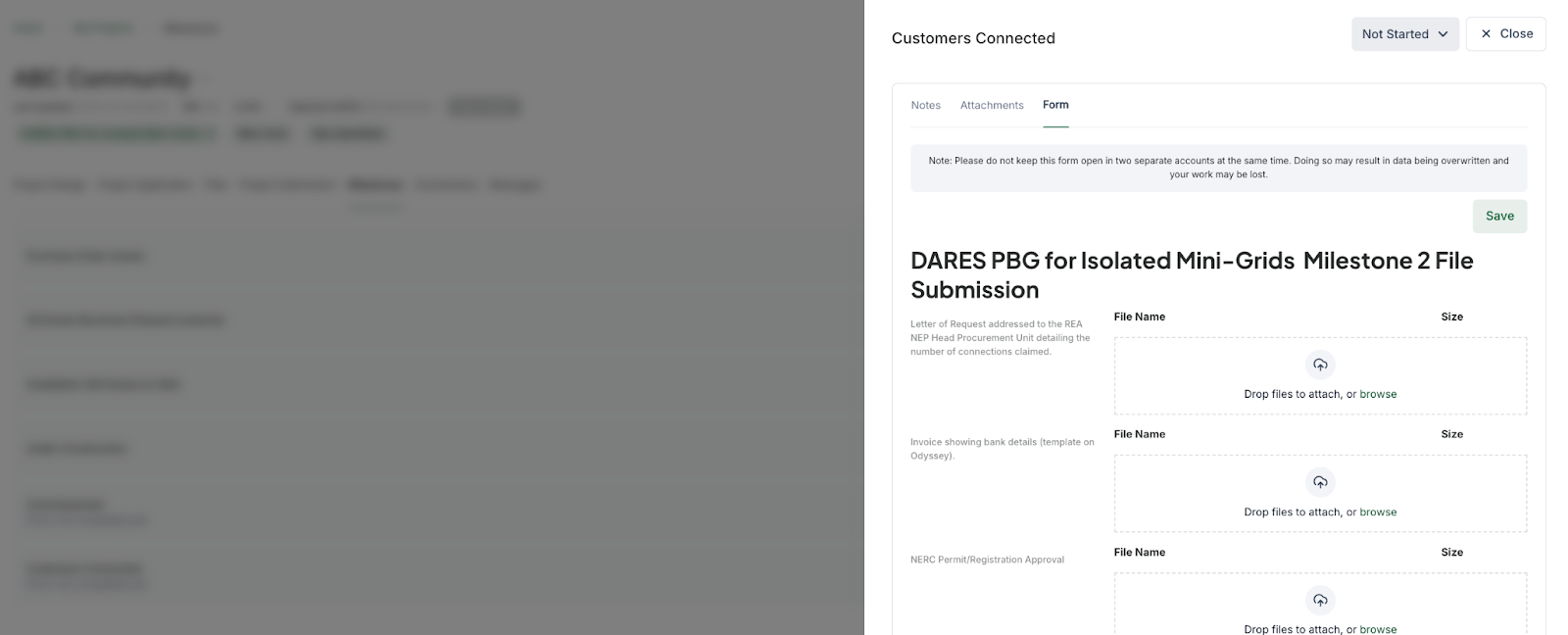
Customers Connected
Once customers have begun using power at the site, set the status of your project to "Customers Connected" to update the program administrators on your project progress.
6. Project Deployment
| Feeder band | Grant rate |
| Band C | USD 750 per kWp |
| Band D | USD 950 per kWp |
| Band E | USD 1,000 per kWp |
- The mini-grid must be commissioned within 12 months of signing the grant agreement.
- All customers must be connected within 24 months of signing the grant agreement. Connections made after 24 months are not eligible for grants.
Milestone 1: Commissioning and Grid Interconnection (80% of grant)
- The installed solar plant is connected to the DisCo grid.
- At least 80% of the planned number of connections are connected, with smart meters integrated with Odyssey.
- The site has been inspected by the Nigerian Electricity Management Services Agency (NEMSA) before commissioning.
- A Letter of Request addressed to the REA DARES Head Procurement Unit, detailing the claim (template on Odyssey).
- An invoice showing bank details (template on Odyssey).
- Completed connection details on Odyssey.
- Verification report of installations by the Independent Verification Agent (IVA).
- Proof of approved site inspection from NEMSA.
- Environmental and Social documents: evidence of ESIA or ESMP approval by the Federal Ministry of Environment where applicable, land acquisition documents, and evidence of Resettlement Action Plan or Livelihood Restoration Plan implementation where applicable.
- Proof of approval and payment for NERC registration/permit. The tariff submitted to NERC using the AFUR Tariff Tool must not be higher than the tariff in your approved technical proposal.
Milestone 2: Supply Performance (remaining 20% of grant)
- Evidence that the minimum daily hours of supply set out in your Service Level Agreement (SLA) were achieved over a 6-month period within one year of commissioning.
- Meters remain integrated with Odyssey to enable live readings.
- Performance has been successfully verified by the IVA.
- A Letter of Request addressed to the REA Head Procurement Unit.
- An invoice showing bank details (template on Odyssey).
- NERC permit/registration approval.
- ESIA/ESMP certificate, where applicable.
- NEMSA inspection certificate.
Example
A Band E project is approved for 1,000 kWp in the grant agreement, making it eligible for up to 1,000 kWp x USD 1,000 = USD 1,000,000.
| Milestone 1 | Milestone 2 |
|
|
Total grant disbursed (if all conditions are met): USD 900,000.
7. Submit Connections for Verification
1. Integrate Meter Data
For remote verification of connections, Odyssey automatically checks your meter and payment data integrated with Odyssey to verify that your connections have been supplied with electricity and meet program requirements. Learn more about setting up a data integration.

Once your site has been commissioned, please complete your meter integration as soon as possible so your data will be available when you are ready to complete remote verification.
Note: When creating the Integration on Odyssey, please ensure the Level of integration is Project level and the Data Set is Meter Metrics. Reach out to the Odyssey support team incase of any questions.
2. Complete remote verification and submit your connections
You will upload connections and complete remote verification in the Connections module of each project. Learn more about completing remote verification and submitting your connections.
To verify your connections;
Select the checkbox next to each connection you would like to submit
Select Verify
View your connections status
Once you select 'Verify', the verification process will be initiated and the status of each of them will be displayed. Review the meaning of each status below:
Verification in progress
The request to verify the connection has been sent.Meter Reading not found
No data was found for the meter. Please check your integration againData out of date range
Consumption was found, but not within the date range of the rule (e.g. Consumption is greater than zero but doesn't meet the 90-day date range)Didn’t meet requirements
Consumption is equal to 0Error during verification
An unexpected error occurred.Verified
Verification was successful
3. View your connections status
Once you have submitted connections, the program administrators will review your connections and either mark the connections as Approved, Paid, or Rejected. You can view a summary of the status of all connections in the summary at the top of the Connections module and will be notified by email of any connection status updates.
Not Submitted
Connections are uploaded to Odyssey but not submitted.
Submitted Connections
Investor has received the connections.
Approved Connections
Investor has approved the connection.
Paid Connection
The program administrator has processed the connection as part of a grant disbursement.
Rejected Connections
The investor received the connection and there was a reason the connection was refused.
You can rectify the connection (ex: adding missing information) and submit again if appropriate. Please check the Messages section of your project for more information from the program administrator.
8. Messaging program administrators
You can communicate with the Program administrators
Navigate to the Messages module in your project.
Write your message
Click on Submit to send it.